Showing posts with label enable. Show all posts

Thursday, June 1, 2017

Enable LED flash alerts on iPhone for Every Notification

Enable LED flash alerts on iPhone for Every Notification


The Apple has provided LED flash Light in its iOS device. Generally, it’s use for capture Photo in darkness mode to keep away from redeye image or removes darkness at night time. but here we give you a amazing tricks through that you can keep enable LED flash alerts in your iPhone each and every notifications such as, Incoming calls and message etc, with flash alert.
led flash for alerts iphone 6 plus
Have you no idea about that then follows beneath given tips on how to enable LED flash alerts on iPhone every notification. You can do it using Accessibility feature in your iPhone, once turn on LED flash alerts then new coming each and every notifications will alert beeps or buzz with flash alerts. Now you get one thing also if you don’t hear your iPhone beeps Sound then don’t worry, it’s come with flash light now.

How to enable LED flash alerts on iPhone: Get Incoming Calls, SMS with flash alerts

Step: 1

Launch Settings app from your iPhone’s Home screen.

Tap on General..
led flash for alerts iphone 6 plus
Step: 2

In General, Choose Accessibility Option
enable led flash alerts iphone
Step: 3

Scroll down and Turn toggle on LED Flash for Alerts, under the Hearing option.

Note: you can disable LED flash notification light by turn off toggle “LED Flash for Alert” in your iPhone and iPad.

That’s it. We hope, you would like this tips on how to enable LED flash alerts on iPhone when receive every new Notification. Keep in touch with us to know more tips and tricks concern iPhone 6, iPhone 5 and more as well as Mac Problem solution.

Any advice then sure you can write in below comment box.

Available link for download

Read more »

Saturday, April 22, 2017

How To Enable Display Hibernate Mode On Windows 8 and Windows 8 1

How To Enable Display Hibernate Mode On Windows 8 and Windows 8 1


As you already know the windows operating systems have seen additions of several highly useful features throughout the evolution cycle of the OS. From Windows XP to Windows 7 was the most major leap that the Redmond company ever made, both in aesthetics and in the feature set that the operating system had to offer. Jump lists, aero Snap and dynamic search are just some examples that one can quote in this context.

However, that doesn’t mean that highly revered features didn’t exist prior to that. Windows XP was the first operating system to introduce Hibernation, and beyond doubt, that was one of the most useful power features that the operating system came with, allowing the user to save the state of the whole machine when powering it down, and consequently resuming work much faster than a cold start.

windows 8 windows 7 hibernate

With Windows 8, a lot of things changed in comparison to the previous iterations, and not just in terms of the new Modern UI. The operating system also saw the addition of several new features (take the Ribbon UI, for instance), and removal of others. However, as the OS was built with a tablet and desktop approach, it went for a hybrid approach, thereby resulting if certain areas of the offered features getting hidden despite remaining a part of the operating system.

Within power options, Shut Down is the biggest example, where the removal of the Start Orb resulted in a much more complicated process for powering down your machine. Granted, you won’t want to power down a tablet very often, but if you’re a desktop or notebook user, that certainly was annoying. Another similarly missing power option (apparently) is Hibernate, which, although not readily visible, is still a part of the operating system, and you just have to enable it.
In this article, we’ll show you how to enable Hibernate on Windows 8 and Windows 8.1, Here you can also read how to install windows 8 from USB Flash drive easily. 

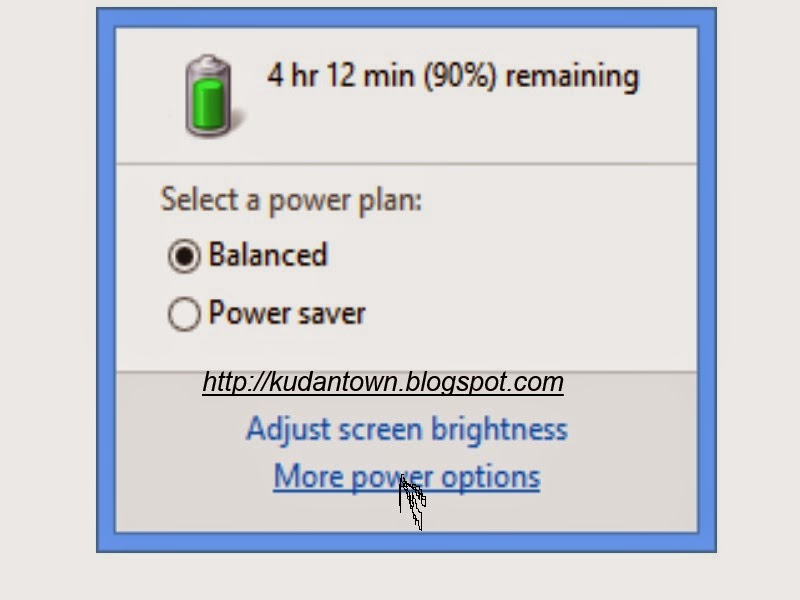
Step 1: In your system tray, click the battery icon and select More power options from the panel that pops up.

Enable Hibernate Mode Windows 8 / 8.1

Step 2: In the power options window, select either “Choose what closing the lid does” or “Choose what the power button does” from the left panel.

How To Enable / Display Hibernate On Windows 8 and Windows 8.1

Step 3: In the next window, click the blue text that says “Change settings that are currently unavailable”

How To Hibernate On Windows 8 and Windows 8.1

Step 4: At the bottom of the windows, a new set of options will become available. Check the box next to Hibernate and click Save changes.

Install windows 8 on windows 7

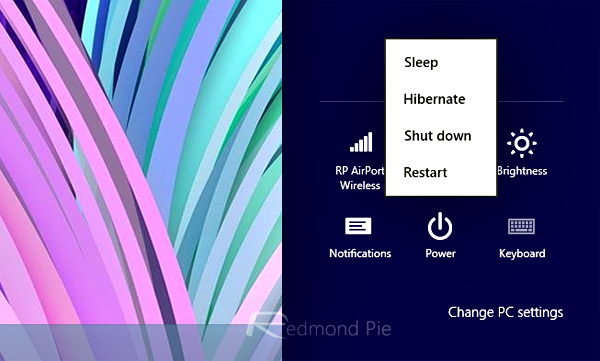
That’s it – Hibernate will now show up in power options. Pull up the Charms bar using the Win + C combination, go to Settings and click the Power button. You’ll see that Hibernate has been added to the list, allowing you to save your system state at any time and resume where you left off.

How To Enable / Display Hibernate On Windows 8 and Windows 8.1

We have tested and can confirm that the above illustrated method is compatible to works with the latest version of Windows 8 and Windows 8.1. We have also attach together with screenshot for you to understand well.

If this is help you please share it to your friends on social media, also if you get any problem concerning this tutorial please drop your comment.

For mre help Add me on WhatsApp Messenger via My Number: +2348067611897...

Dont for get to share our articles to your friends via social networks..

Available link for download

Read more »

Thursday, March 30, 2017

Enable calling feature on whatsapp call apk

Enable calling feature on whatsapp call apk


There had been rumors about whatsapp having a calling feature, well it looks like they’ve finally implimented it but it might be still in it’s beta version, so it’s not out for the public yet. a user in reddit had enabled this feature and posted a screenshot, so I decided to try.
let’s get started.
Requirements:


Quote:

1)Root access
2) whatsapp (version 2.11.508 or up. you can use the whatsapp.apk in the attachments.)
3) terminal emulator


Instructions:


Quote:

1) make sure you have the right version of whatsapp
2) open terminal emulator in your android phone
3) type in the following:

HTML Code:


su
am start
-n com.whatsapp/com.whatsapp.HomeActivity


4) whatsapp should now open with the calling feature enabled.


Drawbacks:


Quote:

1) if you want to call someone, the other person must have done the same thing (enabled this feature) in order for that person to receive your call
2) you need to do this every time you want to call
3) someone who already has this feature needs to call you in order for this feature to be activated, I know, that sucks.


proof:
Screenshot_2015_02_01_12_27_44


say thanks if I’ve helped!


Contributors
shashanksetty


Version Information
Status: Testing


Created 2015-02-01
Last Updated 2015-02-01


Direct Download Link


Available link for download

Read more »